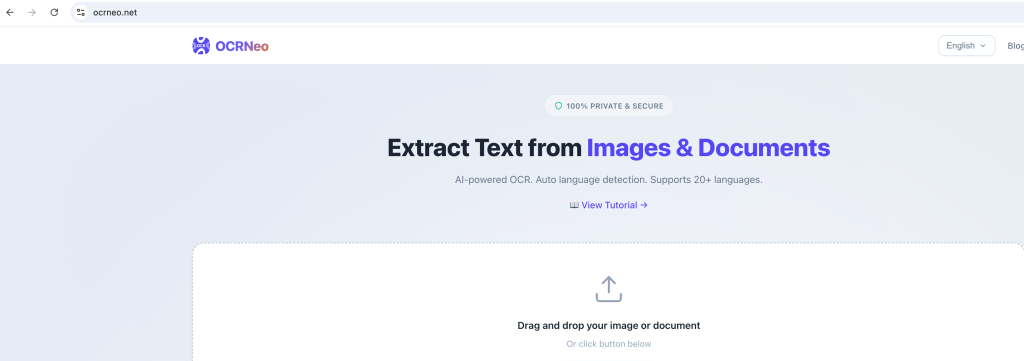
Need to pull text out of a screenshot, scanned PDF, or iPhone HEIC photo? OCRNeo is a free online OCR tool that does it in three steps — no signup, no watermark, no daily limit.
Go to ocrneo.net and start extracting. Here’s the full walkthrough.
What OCRNeo Can Do
In short: it pulls editable text out of images and PDFs.
What it supports:
- Image formats: PNG, JPG, JPEG, BMP, WEBP, TIFF, HEIC
- Document format: PDF (multi-page, processed page by page)
- Languages: 20+ languages with auto-detection — English, Chinese, Japanese, Korean, Spanish, French, German, Arabic, Russian, Thai, Vietnamese, Indonesian, Portuguese, Italian, Hindi, and more
- Output: extracted text + detected language tag + copy / download as TXT
On privacy: files are deleted right after processing. Nothing is stored on the server.
How to Use OCRNeo (3 Steps)
Step 1: Open OCRNeo
Go to https://ocrneo.net/. The English version is the default.
In the middle of the page you’ll see an upload area saying “Drop files here or click to select.”
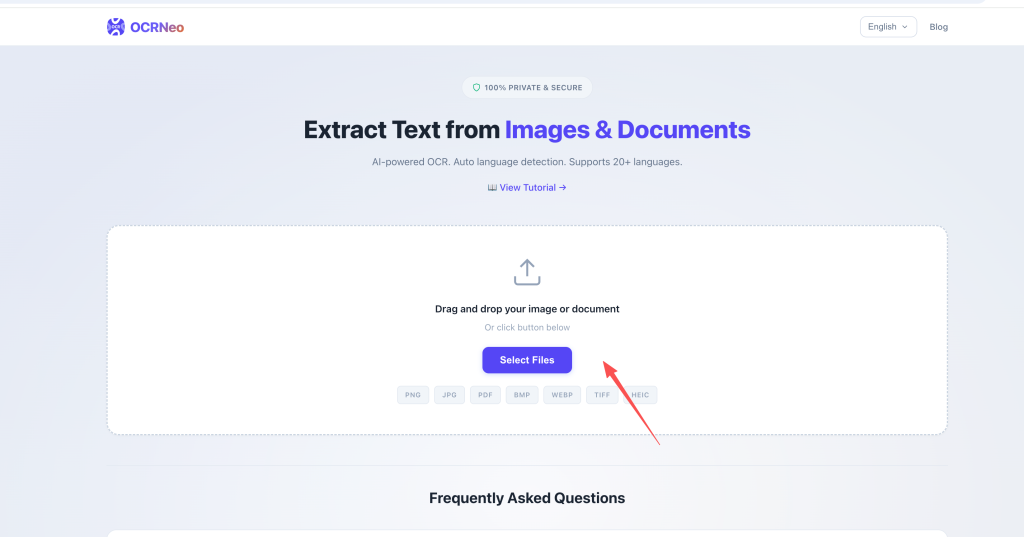
Step 2: Upload Your File
Two ways:
Option A: Drag and drop — drag the image or PDF straight onto the upload area and release.
Option B: Click — click “Select Files” and pick from your file manager.
The supported formats are listed below the upload box: PNG / JPG / PDF / BMP / WEBP / TIFF / HEIC.
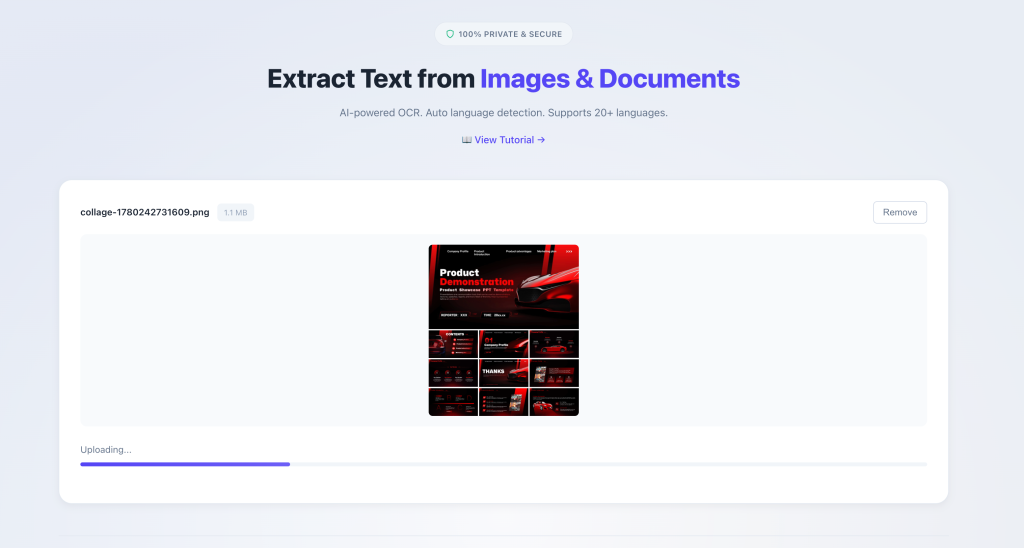
Step 3: Wait for OCR, Then Copy or Download
Processing starts automatically after upload — a progress bar shows the status. When it’s done:
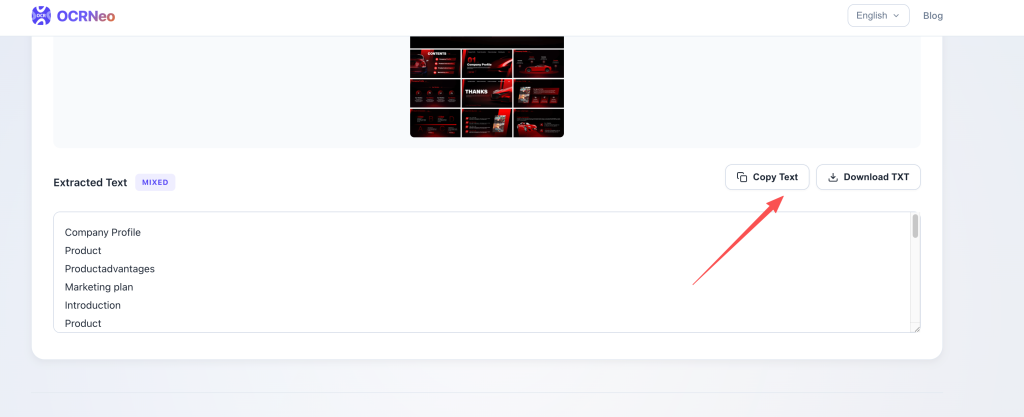
- The “Extracted Text” box on the right shows the recognized text
- The detected language shows above the box (EN / ZH / JA / etc.)
- Three action buttons:
- Copy Text — copy to clipboard
- Download TXT — save as a .txt file
- Remove — clear and upload a new file
Common Use Cases
Use Case 1: Extract Text from a Screenshot
Screenshot → save to disk → drag to OCRNeo → copy the text. Usually done in 2–3 seconds.
Use Case 2: Extract Text from iPhone HEIC Photos
iPhones save photos as HEIC by default, and most tools don’t support it. OCRNeo does — just drop the file in, no conversion needed.
Use Case 3: Make a Scanned PDF Editable
Drop in a PDF and OCRNeo processes every page in order. Pages are separated with --- Page Break --- so you can spot where each one starts. Multi-page PDFs are handled in one go.
Use Case 4: Mixed-Language Documents
A poster with both Chinese and English? OCRNeo auto-detects the language for each block — no manual switching required.
Tips for Best Results
1. Sharper images mean better accuracy
- 200 dpi minimum recommended
- Don’t use tiny text
- Avoid heavy rotation (over 15° noticeably hurts accuracy)
2. Compress large files first
- Single image under 10 MB is fine
- PDF under 20 MB is faster
3. Always double-check the output
- For important stuff (contracts, papers) read through once
- Clean printed text is usually 99%+ accurate; handwriting is hit-or-miss
FAQ
Is OCRNeo really 100% free?
Yes. No paywall, no daily limit, no hidden fees. Open-source and privacy-friendly.
Do I need to create an account?
No. Open the site and start using it.
Are my files saved on your server?
No. Files are deleted right after processing — OCRNeo stores nothing.
Does it support handwriting?
Printed text and clear handwriting, yes. Cursive or messy handwriting is hit-or-miss.
Can I process multiple files at once?
Not yet — one file per session. For batches, just upload them one after another.
Which languages are supported?
20+ languages: English, Chinese, Japanese, Korean, Spanish, French, German, Arabic, Russian, Thai, Vietnamese, Indonesian, Portuguese, Italian, Hindi, and more. All auto-detected.
Does it work on mobile?
Yes. OCRNeo is responsive — open it in any phone browser and it works the same.
How fast is it?
Usually 2–3 seconds per image. Multi-page PDFs take a bit longer (scales linearly with page count).
Related Links
- Main site: https://ocrneo.net
- English: https://ocrneo.net/
- 15 languages total — Chinese, Japanese, Korean, Spanish, Arabic, and more
Got questions? Drop a note at the bottom of the OCRNeo homepage.